Sync Mac OS X Leopard Address Book with Google Gmail Contacts

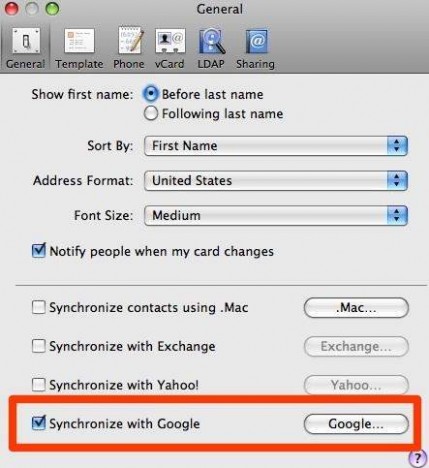
Mac OS X LeopardSince Mac OS X Leopord 10.5.3 update release, Mac OS X Leopard has added a built-in synchronization feature that syncs contact list between Mac OS X Address Book with Google Account or Gmail Contacts. The Google Gmail contact sync feature can be enabled via Address Book’s General Preference tab by selecting “Synchronize with Google” option.

After entering the Google Account or Gmail credential (user name and password), Mac OS X will automatically sync or update (it’s possible to read from, change, delete or overwrite Google or Address Book) contacts every time user connects and syncs iPhone or iPod Touch with the Mac machine. Google Mac Blog recommends that user backs up both Address Book and Gmail contacts before start syncing.

For minority Mac OS X 10 users who don’t have or don’t own a iPhone or iPod Touch, the Google Account sync option won’t be available, and be grayed out or disabled. Use the hack below to unlock, turn on and enable the built-in sync option for Mac OS X Leopard to sync with Google Account, without the need to make use of third-party or paid programs.

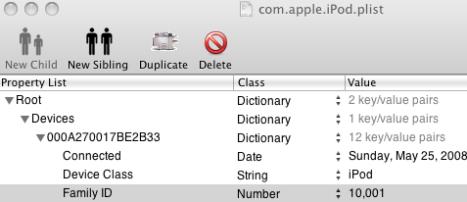
  1. Download and install the Property List Editor PlistEdit Pro (a shareware). User can uninstall the editor after doing the modification, or simply use a text editor by manually editing the number for “Family ID” as shown below.
  2. Open up ~/Library/Preferences/com.apple.iPod.plist and save a backup copy of the file.

    Note that the iPod plist file that lives at ~/Library/Preferences does not exist on the Mac computer if the user never connect one of Apple i-gadgets to the system.

  3. Expand the tree to reveal Family ID.
  4. Change the number value to 10001.

    Property List Editor

  5. Save the change.

    For user without any working iPod or iPhone device, copy and paste the following into a text editor and save it as ~/Library/Preferences/com.apple.iPod.plist:

    { Devices = { red-herring = { 'Family ID' = 10001; }; }; }

  6. Launch Mac OS X Address Book and open the Preference pane, and then go to General tab.
  7. Check and tick the checkbox for Synchronize with Google option. Enter the user name and password credential when requested, or by clicking on Google button at the end.
    Sync Mac OS X Address Book with Gmail

  8. Perform a sync with iPod with Contact Sync option enabled on the device (any versions including classic, nano, Shuffle and etc, not necessary to be Touch or iPhone). Alternatively, initiate syncing to .Mac will also automatically make Mac OS X Address Book sync with Google Contacts too.


9 Responses to “Sync Mac OS X Leopard Address Book with Google Gmail Contacts”

  1. OTA Syncing Between BB & iCal for Free! (MobileMe for bb... kinda) - Page 2 - BlackBerry Forums at CrackBerry.com
    April 26th, 2009 08:11
    9

    [...] [...]

  2. Lobsterman
    November 9th, 2008 05:08
    8

    The option appears, but it will not accept my Google credentials even when I turn off the https in gmail.

  3. henigushi
    October 26th, 2008 11:19
    7

    Just like outinsun, I followed the directions and see Sync to Google in Address Book, but nothing happens with my Google account. I’m on a MacBook Pro using OS 10.5.5

  4. outinsun
    October 14th, 2008 03:16
    6

    I see the Sync to Google button in my Address Book preferences. I set up my Google credentials. All seems well. I run Sync Now in iSync. No errors reported. But no contacts go in either direction between Address Book and Google. Am using a normal Gmail account (also tried Google Apps). I have synced with iPhone in the past. Tried the plist hack anyway (saved properly as a plain text plist file). Made no difference. Am running OS X 10.5.5.

  5. Jeremy
    September 25th, 2008 07:50
    5

    It works but you need to do the following to make sure you’re saving the file correctly.

    First open the textedit app and past the following into the editor:

    { Devices = { red-herring = { ‘Family ID’ = 10001; }; }; }

    Next, go to the format menu and select “make plain text”. This step is very important.

    Then save the file as ~/Library/Preferences/com.apple.iPod.plist

    finally, you’ll be prompted which file extension to save it as, select plist

    That should solve your problem

  6. Russo
    July 17th, 2008 17:08
    4

    Worked perfect for me!!!

    Thanks a lot!

  7. Arif
    June 25th, 2008 13:50
    3

    Followed the directions above for syncing google contacts. The ‘Sync with Google’ option never appeared. The plist file updated correctly. I have sync’d an ipod so I had the file and simply updated the FamilyID.

    Any suggestions?

  8. lan
    June 7th, 2008 20:50
    2

    { Devices = { red-herring = { ‘Family ID’ = 10001; }; }; }

    does not work … parse error!

  9. Apple Mac OS X Leopard 10.5.3 Update Download » Tip and Trick
    May 31st, 2008 00:58
    1

    [...] system. One of major feature added with the version 10.5.3 update to Mac OS X Leopard is ability to sync Address Book with Google Account or Gmail contacts. Mac OS X 10.5.3 update enhances, improves and fixes various stability and compatibility issues [...]

Leave a Reply

You can use these tags: <a href="" title=""> <abbr title=""> <acronym title=""> <b> <blockquote cite=""> <cite> <code> <del datetime=""> <em> <i> <q cite=""> <strike> <strong>

Subscribe to comments feature has been disabled. To receive notification of latest comments posted, subscribe to Tip and Trick Comments RSS feed or register to receive new comments in daily email digest.
Custom Search

Incoming Search Terms for the Article

sync address book with gmail - sync gmail and address book - sync address book - sync address book with google - gmail sync mac - sync mac address book with gmail - sync gmail with mac - sync Gmail contacts with Apple Contacts - sync gmail contacts mac - sync mac with gmail - Sync address book with gmail contacts - mac address book gmail sync - com.apple.iPod.plist download - sync address book to gmail - sync address book and gmail - sync mac address book gmail contacts - apple address book sync google - sync mac address book with google - sync gmail with address book - apple address book gmail - gmail contacts mac - sync mac address book with gmail contacts - gmail mac sync - gmail contacts sync mac - com.apple.iPod.plist - sync address book gmail - google sync address book - synchronize address book with gmail - address Book gmail sync - sync mac address book google - sync gmail contacts with mac address book - sync gmail contacts - leopard address book gmail - osx address book gmail - gmail contact sync mac - Google Sync Mac - sync gmail and mac address book - sync mac with google - sync mac address book and gmail - apple address book to gmail - sync gmail with mac address book - sync mac address book with google contacts - sync google contacts with mac address book - gmail contacts leopard - sync gmail apple address book - address book google sync - google contacts sync mac address book - sync addressbook with gmail - sync gmail contacts mac address book - leopard address book - apple address book gmail sync - sync gmail contacts apple mail - sync gmail contacts with apple mail - sync apple address book with gmail - mac address book gmail - sync contacts gmail mac - sync address book google contacts - sync gmail contacts with mac - google contacts mac address book - os x address book google sync - sync address book gmail contacts - sync apple address book with google - sync gmail mac - m3 - syncing address book with gmail - leopard address book google - google contact sync mac - mac address book sync google - sync gmail and address book mac - mac address book gmail contacts - mac address book sync google contacts - leopard address book sync with google - apple address book google mail - gmail osx address book - leopard address book sync google -