


How to Disable Quick Launch Bar Feature
In Windows Vista and Windows XP (if you have manually enable the Quick Launch bar), Quick Launch bar will take up a position in the Windows Taskbar, which normally resides right beside the Start Menu. If the area of Taskbar location occupied by Quick Launch bar is precious and important to you, or you’re not actively using Quick Launch shortcuts, it’s possible to reclaim the space by disable Quick Launch feature.
How to Disable Quick Launch Bar
To disable and turn off Quick Launch bar in Windows XP and Windows Vista (actually it’s not ‘disable’, but just make the Quick Launch bar hidden and disappear from showing in Taskbar. Quick Launch folder still exists, where users and programs can still add or remove icons and shortcuts from it), just follow these steps, which applied to both Windows XP and Windows Vista.
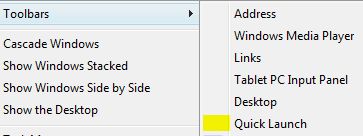
Right click on Windows Taskbar, then select Toolbars on the right click contextual menu. In the pop up menu, uncheck or untick the Quick Launch option by clicking on it once, so that there is no check mark in front of Quick Launch to turn off Quick Launch bar feature.


Recent Articles
- How To Download HBO Shows On iPhone, iPad Through Apple TV App
- Windows 10 Insider Preview Build 19025 (20H1) for PC Official Available for Insiders in Fast Ring – Here’s What’s News, Fixes, and Enhancement Changelog
- Kaspersky Total Security 2020 Free Download With License Serial Key
- Steganos Privacy Suite 19 Free Download With Genuine License Key
- Zemana AntiMalware Premium Free Download For Limited Time


