


How Open Command Prompt as Administrator on Elevation in Vista
When using command prompt or command shell in Windows Vista, the following error message may occasionally happens:
The requested operation requires elevation.
Or,
Access denied.
The problem happens because Windows Vista places restriction on processes running to increase security in Windows Vista environment. User Access Control (UAC) runs all user initiated processes and programs in low privilege mode which limit its access to protected system files, folders and registry. Thus, some commands which require exclusive access to important system components fails when run in ‘normal’ command prompt without elevation. To resolve the denial problem, run the operation or process in elevation mode by opening command prompt elevated as administrator.
There are more than one ways to open elevated command prompt with administrative privileges in Windows Vista as listed below. All method, if the UAC is enabled, will have system prompt user for administrator’s password or request for user’s permission to continue. When prompted, enter administrator’s password, or press Alt+C or press Continue to confirm the UAC elevation request.
Method 1
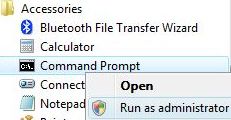
- Click on Vista Start button.
- Go to All Programs -> Accessories, and then locate the Command Prompt menu item.
- Right click on Command Prompt.
- On the pop-up right click context menu, select Run as Administrator.
Method 2
- Press the Win keyboard key or click on Vista Start button.
- Type cmd into the Start Search textbox.
- Press Ctrl+Shift+Enter keyboard shortcut. Ctrl-Shift-Enter is the general keyboard shortcut that triggers elevation to “Run as Administrator”.
Method 3
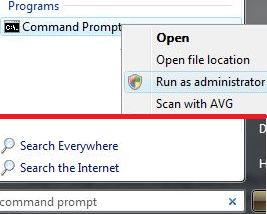
- Click on Vista Start button.
- In the Start Search box, type in Command Prompt or Cmd.
- Right click on the Cmd or Command Prompt that appears in the search result listing.
- In the right click menu, click on Run as Administrator menu item.
Method 4
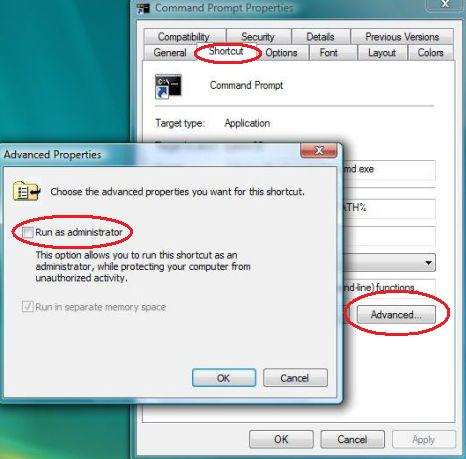
If you always need to use an elevated command prompt with full administrator privileges and rights, configure and set the command prompt shortcut so that it’s always run as administrator with high and top level privilege and access rights.
- Right click on a Command Prompt shortcut.
- Click on Properties.
- Go to Shortcut tab.
- Click on Advanced button.
- Tick the check box of Run as administrator.
- Click OK twice to exit.
Next time whenever user clicks on the Command Prompt shortcut, the launched window will automatically elevate to high privilege level with administrator rights.
More methods to open elevated administrator’s command prompt.


Recent Articles
- How To Download HBO Shows On iPhone, iPad Through Apple TV App
- Windows 10 Insider Preview Build 19025 (20H1) for PC Official Available for Insiders in Fast Ring – Here’s What’s News, Fixes, and Enhancement Changelog
- Kaspersky Total Security 2020 Free Download With License Serial Key
- Steganos Privacy Suite 19 Free Download With Genuine License Key
- Zemana AntiMalware Premium Free Download For Limited Time