


How to Use SFC.EXE Resource Checker to Fix and Recover Incorrect or Corrupted System Files
SFC.EXE is a Windows system files resource checker that scans the integrity of all protected system files and replaces incorrect versions with correct Microsoft versions. SFC comes packaged and built-in since Windows XP era, and is also included in Windows Vista.
However, not many users seem to ever use the the useful utility when the Windows operating system is in trouble or running into problem. Some may not even aware of SFC existence, probably because that the program is not listed in Start Menu’s All Programs listing. Beside, most advanced users prefer to use Ghost imaging or cloning software to backup a clone copy of entire disk, which can then be restored when there is system failure. Most users simply wipe off the hard disk and reinstall a fresh and clean copy of Windows.
However, sometimes, some problems and errors can be fixed immediately without much trouble and hassle by using SFC.EXE. It’s especially the case when user has using Windows for a period of time, and has made considerable changes to system settings and has lots of user files.
To us SFC.EXE, open an elevated privilege command prompt as administrator by type Cmd in Start Search box, and right click on Cmd appear in search result and then select Run as Administrator. Entering sfc /? will display help and usage guide of the Microsoft Windows Resource Checker, as shown in figure below.
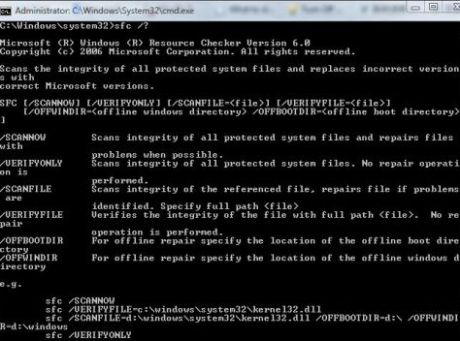
Generally, the only command that needs to be run and most effective is:
sfc /scannow
The command will scan integrity of all protected system files, and if problem is detected, the program will attempt to repair the files automatically. After running “sfc /scannow” command, wait for the progress to reach 100% completed, and then restart the computer. After restart, all system files will be exactly the same as if when Windows Vista or XP is just installed.
However, because the process is effectively restore and revert system files back to original factory state, thus all changes, personalizations and customization to the system, such as theme crack, logon screen, startup screen will be reset to original Microsoft style. If you facing problem after changing the display language options in registry with new MUI language packs, this utility can fix the problem too.
SFC can restore a lot of system files and fix a lot of errors and problems instantly, so when encountering any issues, try “sfc /scannow” command first, and it may solves the problem. Note that some restoration may require users to insert Windows XP installation CD or Windows Vista installation DVD. And don’t worry that updates or hotfixes have to be downloaded and applied again, as SFC is not complete system restore, it just replaces corrupted or problematic system files, if it detects one.


Recent Articles
- How To Download HBO Shows On iPhone, iPad Through Apple TV App
- Windows 10 Insider Preview Build 19025 (20H1) for PC Official Available for Insiders in Fast Ring – Here’s What’s News, Fixes, and Enhancement Changelog
- Kaspersky Total Security 2020 Free Download With License Serial Key
- Steganos Privacy Suite 19 Free Download With Genuine License Key
- Zemana AntiMalware Premium Free Download For Limited Time