
How to Take Ownership and Full Control Permissions of Files and Folders in Vista

A lot of files and folders in Windows Vista does not actually belongs to users. Rather, most system files have “Trusted Installer” as owner, the assign or grant read+write, traverse or full control permissions to SYSTEM or CREATOR OWNER user account only. So users must take ownership and grant full access control permissions and rights to themselves if they want to modify, rename or delete these files or folders. Sometimes, users may need to take ownership and grant full rights to themselves on another drive or partition, especially on disk newly installed or inserted if they cannot browse the contents from the drive.

To take ownership and grant full control (or read write) permissions of files or folders in Windows Vista, do these steps.

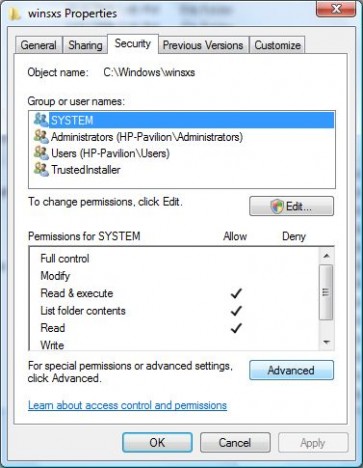
  1. In Windows Explorer window, locate the files or folders that you want to take ownership and grant or change full control or other access permissions.
  2. Right click on the file or directory, and then select Properties on the right click menu.

    Open Folder Properties

  3. Click on Security tab.
  4. Click on Advanced button at the bottom.
    Take Ownership

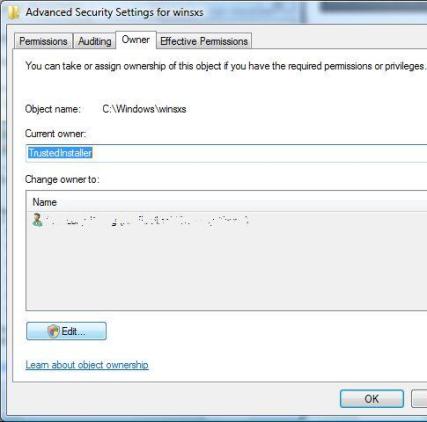
  5. In “Advanced Security Settings” dialog window, click on Owner tab.
  6. Here you will be able to see current owner (i.e. TrustedInstaller). To take ownership of the object, click on the Edit button. If UAC prompts for administrator’s password or permission to continue, enter the correct password or press Continue button.
    Take Onwership of Files and Folders in Windows Vista

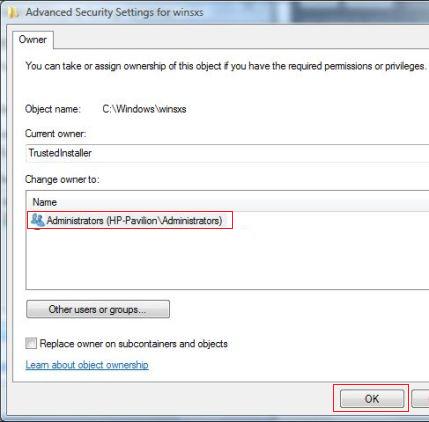
  7. Additional “Advanced Security Settings” dialog will appear. Highlight the user name (for example, Administrators) in the Change owner to box that you want to assign as the owner for the object. Click OK to make the change.
    Take Ownership of Files and Folders in Vista

  8. Back in original parent level “Advanced Security Settings” window, you will see the existing owner of the file or folder has changed to the user you just selected.
  9. Click OK button to exit this window.
  10. Click OK again to exit completely from the Properties window.
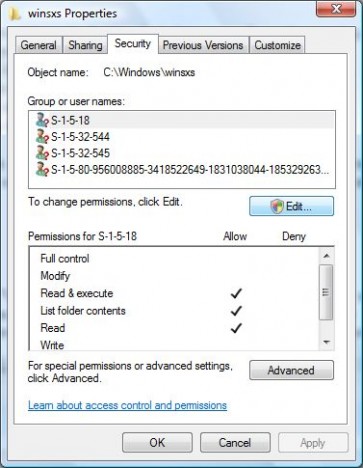
  11. The ownership is now belonged to user or user account that been selected. To assign necessary permissions to the user too, repeat step 1 to 3 to open the object’s Properties window again.
  12. In object’s Properties window, click on Edit button to change permissions. If UAC prompts for administrator’s password or permission to continue, enter the correct password or press Continue button.
    Change Files and Folders Permissions in Windows Vista

  13. Highlight the Administrators or the user who wants the permissions on the object be changed in the “Group or user names” box.

    If the user ID or group that you want to manage the permissions for the object doesn’t exist, click on Add button, and type in the user name or group name desired into the Enter object names to select box, and finish off by clicking on OK.

  14. In the Permissions for Administrators box below (or any other user name or group name you chose), click on “Full Control” under the “Allow” column to assign full access rights control permissions to Administrators group.
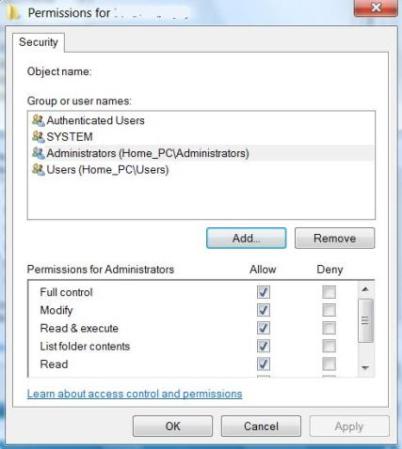
    Assign Full Control Permissions

  15. Click “OK” twice when done.

Users can now do whatever you like to the files or directories processed as above. If you feel that above process is a little too long, and prefer to use command line to perform above process, then open an elevated command prompt as administrator, and issues the following commands:

For Files:

takeown /f file_name /d y
icacls file_name /grant administrators:F

For Folders or Directories (will perform action recursively):

takeown /f directory_name /r /d y
icacls directory_name /grant administrators:F /t

Replace file_name or directory_name with actual file name or folder name, with path when applicable. The first command will take ownership of the file or folder specified, and the second command will grant full control permissions to administrators user group. Note that when using command for folders, to command will run recursively. To prevent the task been perform recursively, remove the “/r” and “/t” switch.

Update: Related articles have been updated and consolidated as How to Take Ownership and Gain Full Control Permissions in Windows


25 Responses to “How to Take Ownership and Full Control Permissions of Files and Folders in Vista”

  1. required
    December 20th, 2011 17:30
    25

    serriously – doeas ANYONE think this idiocy is remotely acceptable?

  2. Steve
    May 27th, 2011 02:39
    24

    Thank you a million times.

    I have just wasted so much time trying to get a directory and recovery files removed. Your instructions worked perfectly on Win7 Ult.

  3. Youssef
    March 7th, 2011 01:24
    23

    how can i give ownership to a certain user on a folder and it's subfolder from CLI

    COZ i need to apply that on a file server with many folder

  4. Lloyd
    February 18th, 2011 15:42
    22

    "Additional “Advanced Security Settings” dialog will appear. Highlight the user name (for example, Administrators) in the Change owner to box that you want to assign as the owner for the object. Click OK to make the change."

    You would have to check the box at the bottom "Replace owner on subcontainer and objects" if it is a folder.

    If not you'd have to repeatedly change the ownership for every single file in the folder again and again

  5. byran
    July 7th, 2010 07:16
    21

    it is so detail and usefull to me…thanks very much..

  6. revancha
    May 24th, 2010 00:13
    20

    C:>takeown /q q: /d y

    'takeown' is not recognized as an internal or external command,

    operable program or batch file.

    I'm using windows vista 64 home premium

  7. Easier Way to Take Ownership and Grant Access Files or Directories in Vista » My Digital Life
    May 13th, 2010 17:46
    19

    [...] click on Advanced button, click on Owner tab, and then perform several clicks and confirmations to take ownership of the object. The whole process have to repeat again to grant read-write-modify or full control access rights to [...]

  8. Lee
    April 11th, 2010 22:16
    18

    This the result of using the icacls. Clearly it does not work.

    C:Windowssystem32>icacls d:users /grant administrators:F /T

    d:users: The system cannot find the file specified.

    Successfully processed 0 files; Failed processing 1 files

  9. Lee
    April 11th, 2010 22:12
    17

    These directions do not work:

    takeown /f d:users /r /d y

    it looks like you have to use capital. Letters. In addition I get a gazillion "cannot find the file specified" message as it recurses through the folders. The real screwed up thing is, it actually gives the filename, meaning it finds the file, but then throws a file not found error.

    This one crashed and burned right out of the gate. Need to play with this a while to get it to work. WIll post the correct.

    icacls directory_name /grant administrators:F /t

  10. Jules
    March 1st, 2010 10:14
    16

    I have successfully taken ownership and check the box at the bottom of the ownership window, but for some reason I cannot get the permissions to apply to the subfolders and files. Please help.

  11. heather
    February 27th, 2010 02:13
    15

    This is not working for me, can someone please help. I have an old XP laptop hard drive and I'm trying to access the files on it with my Vista laptop. I successfully did this with both an XP home & pro computer but vista doesn't seem to be working.

  12. How to Relocate or Move Offline Files (Client Side Caching) Location in Windows 7 or Vista » My Digital Life
    January 29th, 2010 16:05
    14

    [...] takeown /r /f c:windowscsc [...]

  13. Maikel Beerens
    November 11th, 2009 13:24
    13

    Thanks man!

    With this method, I was able to install my Quickcam messenger from Logitec Under windows 7.

    First download and unpack the logitech QuickCam v (latest) into an folder. Than plugin your webcam, and install the driver manually, from the C:programfiles/logitech folder (just select the logitech folder and hit the next button. After this step, your camera will function, without sound.

    Then do as follows.

    - Google for the file USBAudio.Sys for XP

    Give yourself Rights to the file, as described above, than it will work again.

    Grtz

    Maikel

  14. How to Backup and Restore Windows 7 and Server 2008 R2 Activation Status (Activate Offline On Reinstall) » My Digital Life
    September 24th, 2009 13:31
    12

    [...] Take ownership and give user full control permissions (alternatively add grant full control right click menu item) to pkeyconfig.xrm-ms file. [...]

  15. Delta One
    July 7th, 2009 07:22
    11

    thanks. great post with relevant info that saved me a great deal of time trying to find it myself. keep up the good work.

    best,

    D1

  16. Brandon
    May 18th, 2009 16:32
    10

    i followed all the directions but i still dont have special permission and i tried saving imageres.dll as image.res.dll and it still says do not have permission contact admin

  17. Janelle
    May 10th, 2009 18:09
    9

    I followed all the directions to allow my username, and administration and everything else to have full control, but when I check the full control box, it will go over a bunch of windows files and say access is denied, but the box still remains check. I really don't know what is happening, so if someone can address my issue or knows anything, that would be wonderful!

  18. ava
    April 20th, 2009 09:30
    8

    Thank You!! Your instructions are very well written and easy to follow. Appreciate it very much!

  19. Retrieving files from an old hard drive..? - Head-Fi: Covering Headphones, Earphones and Portable Audio
    April 14th, 2009 06:58
    7

    [...] believe you just have to take permission of the drive. How to Take Ownership and Full Control Permissions of Files and Folders in Vista

  20. How to Change your Vista Theme « Jackychang30’s Blog
    February 13th, 2009 11:04
    6

    [...] take ownership, follow the instructions on this [...]

  21. Retrieve Windows Live Messenger 2009 Standalone Individual Setup Installer (MSI) from Web Download » My Digital Life
    October 21st, 2008 19:20
    5

    [...] Windows Vista, run Windows Explorer as Administrator, and user may requires to take ownership and gain full control permissions for the folders below before able to access [...]

  22. Windows Vista Cannot Auto Find Driver for New USB Device Plugged In » Tip and Trick
    April 27th, 2008 11:10
    4

    [...] delete INFCACHE.1 file, user have to has the Full Control permission and ownership on the file. You can choose to rename if you want to be on the safe side. If the UAC prompt for [...]

  23. Fix Logitech QuickCam (Messenger, Chat, Zoom, IM, Express) Not Compatible Driver Issue in Windows Vista SP1 » Tip and Trick
    April 24th, 2008 22:08
    3

    [...] Take ownership and grant full access permission of WindowsSystem32driversUSBAUDIO.SYS file. [...]

  24. Delete Undeletable Files in Windows Vista » My Digital Life
    April 24th, 2008 22:00
    2

    [...] This article has been reposted to Tip and Trick. [...]

  25. How to Take Ownership and Grant Permissions in Windows Vista » My Digital Life
    April 24th, 2008 21:39
    1

    [...] This guide has been reposted to Tip and Trick. [...]

Leave a Reply

You can use these tags: <a href="" title=""> <abbr title=""> <acronym title=""> <b> <blockquote cite=""> <cite> <code> <del datetime=""> <em> <i> <q cite=""> <strike> <strong>

Notify me of followup comments via e-mail. You can also subscribe without commenting.

New Articles

Incoming Search Terms

take ownership vista - take ownership of folder vista - takeown icacls - take permission - windows permissions full control - icacls take ownership - vista take ownership of folder - icacls recursive - take ownership of folder - take control of files - vista take ownership - vista permissions - icacls grant full control - how to take control of a file - takeown folder - how to take ownership of a folder in vista - take control of file - windows vista permissions full control - takeown xp - Full Control permission -