
How to Disable Windows Vista CD/DVD Disc Burning/Recording Function

Windows Vista has built-in CD and DVD burning or recording feature that allows users to burn the selected files and folders to a CD or DVD disc with a recordable optical drive. However, the burning function supported is pretty basic and users can only burned individual files, images, pictures photos, documents and files to disc as data CD or DVD only. There is no support for CD or DVD disc image handling or burning, nor it’s able to create slide show, audio CD or video CD/DVD.

As a result, a lot of users depends on full feature optical disc software such as Nero. For users who use third-party CD/DVD burning program, the built-in CD and DVD burning capability of Windows Vissta can be disabled or turned off to avoid conflict or interference. When the optical disc burning feature is disabled, the “Burn” button that appears on the Windows Explorer’s toolbar or task pane will be hidden or disappeared.
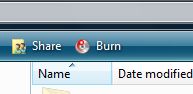

Burn command on the Windows Vista toolbar, which probably seldom used by many, will be hidden and removed after disable CD/DVD burning feature in Vista.

To disable and turn off CD and DVD burning feature in Vista, follow these steps:

  1. Run gpedit.msc (Group Policy Editor) from Start Search.
  2. Expand Local Group Policy, then expand User Configuration, then expand Administrative Templates, and finally expand Windows Components.
  3. Select Windows Explorer.
  4. In the right pane, double click on Remove CD burning features.
  5. Select Enabled radio button to stop and disable all features in the Windows Explorer that allow users to use their CD writer to burn. Click OK when done.
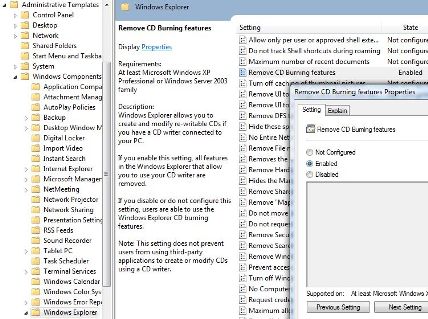
  6. Restart computer or log off and log on again.
  7. To reset and re-enable the CD burning feature in Vista, simply choose back the setting to Not Configured or Disabled.

Note that even though you have disable CD/DVD burning feature, it does not prevent users from using third-party applications to create or modify CDs using a CD writer.

If your system doesn’t come with a Group Policy Editor, it’s possible to manually change the CD burning feature support in the registry. To do so, run Registry Editor (regedit), and then navigate to the following registry key:

HKEY_CURRENT_USER\Software\Microsoft\Windows\CurrentVersion\Policies\Explorer

In the right pane, if it’s not already existed, right click on a blank space, and select New to create a new 32-bit DWORD value. Name the new value name as NoCDBurning, and assign its value data to 1.

To reset and turn back on CD burning feature, delete the NoCDBurning value, or set its value data to 0.

Alternatively, simply download the DisableEnableCDBurning.zip .ZIP archive, which contains two registry files – EnableCDBurning.reg and DisableCDBurning.reg. Simply double click on DisableCDBurning.reg to merge its value to registry to remove CD burning feature, or double click on EnableCDBurning.reg to restore the CD burning feature.

Whichever way you choose, remember to restart computer or logout and login again for the change to take effect.


9 Responses to “How to Disable Windows Vista CD/DVD Disc Burning/Recording Function”

  1. RD
    October 29th, 2009 05:42
    9

    Could also use a method to set the Vista burning default to “Mastered” instead of “Live file system”.

  2. Benjamin A. Shelton | Blog » Blog Archive » Annoyances: Windows 7 DVD/CD Tray Ejection
    August 14th, 2009 11:33
    8

    [...] Windows from stupidly ejecting your drive during accidental clicks.” Instead, you have to disable and remove burning features from Windows explorer using the group policy editor [...]

  3. thankfull one
    February 10th, 2009 08:42
    7

    Thank you so much, the simple regedit did the job! just regedit in the start apply command lind and follow the registry branches until you can ad one new called policies – explorer and ad the dword phrase mentionend, reboot DONE!!! nice to have the reg key for (dis)-abling the auto vista burning function (or is it terrorfunction?)

    Everything works again, and that on a brandnew vista, what a shame on you ->>> Microsoft!!!

  4. Cristian Remy
    August 22nd, 2008 06:35
    6

    Thanks a lot. I really hate this function from vista (i don’t understand why developers doesn’t add a option for “Inject” and/or enable/disable this feature.

  5. Explorer schlie
    June 1st, 2008 20:56
    5

    [...] seltsam. Ich habe das auch an meinem Laptop mit Home Premium ausprobiert mit diesem Trick Klick. Nach einem Neustart bzw. Abmeldung war auch an dem Rechner das Schlie

  6. How to Disable Windows Vista CD/DVD Disc Burning/Recording Function (Excerpt) » My Digital Life
    April 5th, 2008 01:42
    4

    [...] reading How to Disable Windows Vista CD/DVD Disc Burning/Recording Function at Tip and [...]

  7. How to Disable Windows Vista CD or DVD Drive Auto Eject or Open Feature » Tip and Trick
    March 29th, 2008 13:36
    3

    [...] workaround to turn off Windows Vista CD or DVD drive auto eject function is to disable built-in CD/DVD burning feature in Windows Vista. Once the built-in CD/DVD burning function is turned off, Windows Vista will assume the CD/DVD [...]

  8. couple of New Vista Fixes | ProCookie Technology Blog
    March 27th, 2008 02:34
    2

    [...] How to Disable Windows Vista CD/DVD Disc Burning/Recording Function [...]

  9. Fix Black CD or DVD Disc May Not Be Recognized When Inserted to CD Writer in Vista » Tip and Trick
    March 26th, 2008 18:16
    1

    [...] To solve the issue of blank CD or DVD disc not been recognized or detected after been inserted into optical drive tray, try to disable and turn off Vista CD burning feature. [...]

Leave a Reply

You can use these tags: <a href="" title=""> <abbr title=""> <acronym title=""> <b> <blockquote cite=""> <cite> <code> <del datetime=""> <em> <i> <q cite=""> <strike> <strong>

Subscribe to comments feature has been disabled. To receive notification of latest comments posted, subscribe to My Digital Life Comments RSS feed or register to receive new comments in daily email digest.

New Articles

Incoming Search Terms for the Article

burning - vista nocdburning - disable vista cd recording - NoCDBurning vista - vista disable recording - vista disable cd recording - disable vista burning - disable vista burn - disable vista cd burning - disable cd recording vista - Enable CD recording vista - disable cd burning in vista - vista turn off user quicklaunch - disable burning vista - all - disable windows cd burning - vista burn disk - how to disable nero third party activation - disable recording vista - Vista Disable Burning - how to disable dvd drive - disable auto eject vista - enable cd recording in vista - Remove CD Burning features - disable cd burning vista - how do i auto launch cd picture on windows vista - NoCDBurning "Windows Vista" - disable burning - disabling vista burning feature group policy - disable burn vista - dvd - cache:W8yo7RaUAlIJ:www.mydigitallife.info/2008/04/05/how-to-disable-windows-vista-cddvd-disc-burningrecording-function-excerpt/ disable vista disc burning - disable vista burn to disc - turn off cd burning in vista - dvd burning vista - disable windows burning - disable vista writer - no local disk in vista - vista disable dvd writer - how to disable third party activation nero 8 - vista thinks burned disc is blank - disable windows disc recording "windows vista" - enabling cd burning vista 32 bit - disable cd burn gpo - disable cd burning GPO - vista cd - WHY IS DISC NOT RECOGNISED WHEN BURNING - disable cdburn - vista disable cd burning - Disable Recording in Vista -