


How to Bridge Virtual PC 2007 to Use Host Computer Wireless Network Adapter
Microsoft Virtual PC 2007 (update to Virtual PC 2007 SP1) allows the guest operating system in virtual machine to bridge its network connection with host computer existing network connection to connect to external local area network or Internet. The bridged network allows virtual machine to share the host’s network adapter to connect to local area network or Internet as if it’s using its own Ethernet or Wireless (WiFi) network card.
Unlike Shared Network (NAT), when Virtual PC 2007 network virtual adapter connects to network using physical host computer’s network adapter, the virtual machine will be on public network and will be able to communicate via end-to-end connectivity. External hosts and computers can directly ‘see’ and access to the virtual machine’s services, without user having to configuring port forwarding or tunneling. The architecture is important for virtual machine that running as a server.
Virtual PC 2007 can configure a virtual machine to use wireless network adapter of the physical host computer as its virtual adapter at the virtual machine’s networking settings.
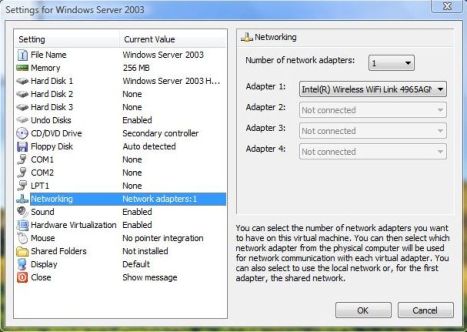
However, is some cases, user is unable to or cannot find the physical host wireless or WiFi adapater in the virtual adapter’s options selection list. Or, the virtual machine’s guest operating system is unable and cannot connect to the wireless or Wi-Fi network even after the virtual adapter setting has configured properly.
The problem is caused by wireless network adapters support in Virtual PC 2007 may has been turned off or disabled.
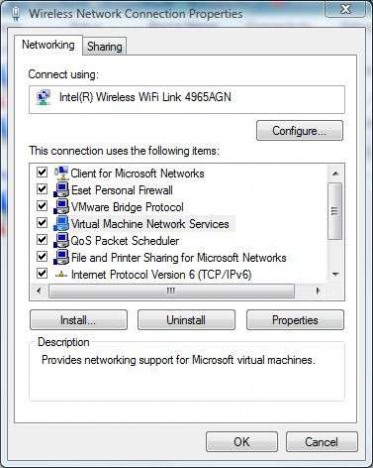
To enable wireless network adapter support in Virtual PC 2007, ensure that Virtual Machine Network Services is selected and usable by physical host computer’s wireless network adapter.
How to Enable Wireless Network Adapter Support in Windows XP
- Click on the Start menu and then open Control Panel.
- Click on Network and Internet Connections and then Network Connections.
Or in Control Panel Classic View mode, double click on Network Connections.
- Right click on the wireless or WiFi network card, and then select Properties.
- Under the list of “this connection uses the following item”, check (tick the checkbox) the Virtual Machine Network Services entry.
- Click OK.
How to Enable WiFi Network Adapter Support in Windows Vista
- Click on Start menu, and then open Control Panel.
- Click on Network and Internet link and then click on Network and Sharing Center link.
In Classic View, double click on Network and Sharing Center icon.
- Click on Manage network connections located in the task list on the left side of the window.
- Right click on the wireless network adapter or WiFi network card, and select Properties.
If UAC dialog request for confirmation to continue, click on Continue or enter administrator’s password.
- Check (tick the checkbox) the Virtual Machine Network Services entry under the list of “this connection uses the following item”.
- Click OK.


Recent Articles
- How To Download HBO Shows On iPhone, iPad Through Apple TV App
- Windows 10 Insider Preview Build 19025 (20H1) for PC Official Available for Insiders in Fast Ring – Here’s What’s News, Fixes, and Enhancement Changelog
- Kaspersky Total Security 2020 Free Download With License Serial Key
- Steganos Privacy Suite 19 Free Download With Genuine License Key
- Zemana AntiMalware Premium Free Download For Limited Time