


Display and Show Feed on HTML Website with FeedBurner BuzzBoost
 Have interesting feed (RSS or Atom) that want to share with website or blog readers? (Subscribe to Tip and Trick feed) It’s possible to display and show feed contents on another website or blog to encourage readers to visit origin blog or site, and thus boosting both traffic. Showcasing contents from another blog by displaying its feed also useful for bloggers who have multiple blogs that want to cross-reference between each other to increase traffic, or want to combine several feeds to show in one portal or post.
FeedBurner provides a service named BuzzBoost that allows users to easily place and republish the burned feeds’ contents to any website or blog that supports HTML and JavaScript. With BuzzBoost, FeedBurner users can easily promote a blog with burned feed on another site or blog. BuzzBoost works by giving users a snippet of JavaScript that can paste into page templates, site themes, or blog posts. With the JavaScript code and BuzzBoost service active, the latest feed items will be display in chronological order, and when readers click on it, will be brought to source’s site immediately.
To activate BuzzBoost service, login to FeedBurner account, and select the feed (blog or site) that you want to post on another or other website or blog. Then click on Publicize tab, and select BuzzBoost on the left pane.
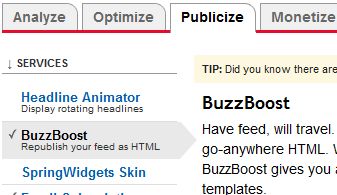
Configure the feed settings such as number of items to display and whether to open links in new window or same window, and then customize how the feed content to display such as feed title, whether to display favicon, author name, item content format and plain text excerpt length, item publication date, linked media from a podcast and link to feed.
When finished configuration, click on Activate button to activate the BuzzBoost service, or click Save to make the changes on settings effective if the service already activated.
The last but not least step is to copy and paste the JavaScript code in the text box into the website or blog that users want the feed to appear. You can place it in Blogger HTML/JavaScript page element, WordPress templates, TypePad and pure HTML page, etc. In most cases, such as in WordPress, the code can be put directly in blog post to display the feed within a post.


Recent Articles
- How To Download HBO Shows On iPhone, iPad Through Apple TV App
- Windows 10 Insider Preview Build 19025 (20H1) for PC Official Available for Insiders in Fast Ring – Here’s What’s News, Fixes, and Enhancement Changelog
- Kaspersky Total Security 2020 Free Download With License Serial Key
- Steganos Privacy Suite 19 Free Download With Genuine License Key
- Zemana AntiMalware Premium Free Download For Limited Time