


How to Set Optimum Screen Resolution for PowerPoint Presentation
Users who need to do a lot of presentations have probably faced these embarrassing situations: the projection result is unacceptable or the slideshow is too blurred or the slideshow is extremely slow. This happens when presenters try to connect their laptop to the venue’s projectors and is a result of resolution compatibility issues. For instance, sometimes the PowerPoint slideshow’s resolution setting and the projector’s resolution setting is different. Thus, the incoming slideshow images will automatically be stretched to match the projector’s resolution and the result will be blurred.
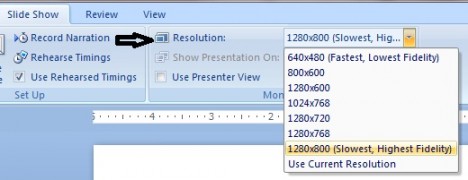
In fact many users generally do not know that Microsoft PowerPoint allows users to adjust the slideshow resolution to be aligned with the projector’s resolution. Presenters can adjust their slideshow’s resolution instead of using the default screen resolution for better effect. Users can choose smaller resolutions for higher speed or larger resolutions to show more visual detail. To set the PowerPoint slideshow’s resolution, users just need to go to the Slideshow Tab and look for the “Resolution” item. Users can click and choose their preferred resolution on the dropdown menu as shown in the photo below:


Recent Articles
- How To Download HBO Shows On iPhone, iPad Through Apple TV App
- Windows 10 Insider Preview Build 19025 (20H1) for PC Official Available for Insiders in Fast Ring – Here’s What’s News, Fixes, and Enhancement Changelog
- Kaspersky Total Security 2020 Free Download With License Serial Key
- Steganos Privacy Suite 19 Free Download With Genuine License Key
- Zemana AntiMalware Premium Free Download For Limited Time