


How to Merge or Remove Duplicate Contacts in Windows Live Hotmail
Over the years of continuous usage of Windows Live Hotmail, most users will definitely created one minor problem to your growing Contacts List – the emergence of duplicate contacts. So, here’s a quick and easy ways how to merge or remove these duplicate contacts in your Windows Live Hotmail in just 4 simple clicks.
1st Click:
After login into your Hotmail account, click on the Options link located at the top right hand side corner of your webmail interface.

2nd Click:
Then, select More Options by clicking on the bottom most bars.
3rd Click:
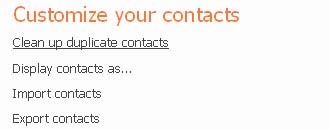
Look for Customize Your Contacts heading, and click on the Clean Up Duplicate Contacts from a list of other options.
4th Click:
Click on the Clean up Duplicate Contacts horizontal button.
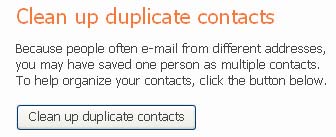
Thereafter, Windows Live Hotmail will fetch and list down all duplicate contacts that exist in your address book. To see if you have duplicate contacts, click a name in that list and you will be prompted with options of either Delete or Merge them into a single contact name. It’s that simple! Now you will have a compact and efficient Hotmail Contacts List.


Recent Articles
- How To Download HBO Shows On iPhone, iPad Through Apple TV App
- Windows 10 Insider Preview Build 19025 (20H1) for PC Official Available for Insiders in Fast Ring – Here’s What’s News, Fixes, and Enhancement Changelog
- Kaspersky Total Security 2020 Free Download With License Serial Key
- Steganos Privacy Suite 19 Free Download With Genuine License Key
- Zemana AntiMalware Premium Free Download For Limited Time