


How to Open and Run 32-bit Command Prompt in 64-bit (x64) Windows
64-bit or x64 version of Windows operating system such as Windows Server 2003, Windows XP Professional x64 Edition, Windows Vista and Windows Server 2008 uses the Microsoft Windows-32-on-Windows-64 (WOW64) subsystem layer to run 32-bit programs, binaries or drivers without modifications, change or transition to 64-bit based binaries, as the 64-bit OS is optimized to run native 64-bit programs and does not provide support for 16-bit binaries or 32-bit drivers.
To reduce compatibility issue and prevent a 32-bit program from accidentally accessing data from 64-bit application, WOW64 subsystem isolates 32-bit binaries from 64-bit binaries by redirecting registry calls and some file system calls. Other than separate registry hive for WOW64 redirected 32-bit values, %systemroot%\System32 and Program Files folder is designated as 64-bit DLLs only too, and all access or I/O of 32-bit binaries been redirected from %windir%\System32 folder to the %windir%\SysWOW64 folder, and from Program Files to Program Files (x86) directory.
The command prompt (cmd.exe) is also affected by File System Redirection feature, where command line commands or .bat and .cmd batch script may not be able to access, install, change, modify, delete or write to “Program Files” or “%windir%\System32” folder. The WOW64 subsystem redirects and installs 32-bit programs in the “Program Files (x86)” and “%systemroot%\SysWOW64” folder.
To access the correct folder, programmer or developer must change the command-line script, or using Sysnative virtual directory alias to access %windir%\System32 instead of %windir%\SysWOW64. When this is not possible, or when have to access original native Program Files folder, user can type the command-line script at a 32-bit command prompt. The 32-bit command prompt automatically redirects file system calls to the correct 32-bit directory.
To start and open a 32-bit command prompt, follow these steps:
- Click Start.
- Type %windir%\SysWoW64\cmd.exe in Start Search box.
Alternatively, press Win + R keys (or type Run in Start Search) to open Run dialog, and type %windir%\SysWoW64\cmd.exe.
- Press Enter.
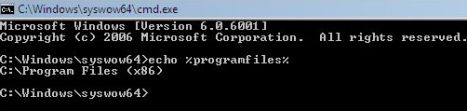
In 32-bit command prompt, the %programfiles% path variable will point to Program Files (x86) folder which stores all 32-bit binaries.


Recent Articles
- How To Download HBO Shows On iPhone, iPad Through Apple TV App
- Windows 10 Insider Preview Build 19025 (20H1) for PC Official Available for Insiders in Fast Ring – Here’s What’s News, Fixes, and Enhancement Changelog
- Kaspersky Total Security 2020 Free Download With License Serial Key
- Steganos Privacy Suite 19 Free Download With Genuine License Key
- Zemana AntiMalware Premium Free Download For Limited Time