


How to Change Icon of Shortcut in Windows Vista
Similar to Windows XP, each shortcut in Windows Vista has its own individual icon that represent the shortcut, and can be changed by users according to their preference. The shortcut icon personalization is easily accomplished and can be done by everyone. The more difficult task is to get a graphic or image that truly visually outstanding and be loved, but Windows Vista does come with several default icons can be used freely.
How to Change Shortcut Icon in Windows Vista
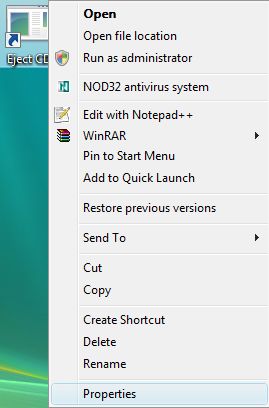
- Locate the shortcut which you want to change its icon image, and right click on the shortcut.
- Click on Properties on the right click contextual menu.
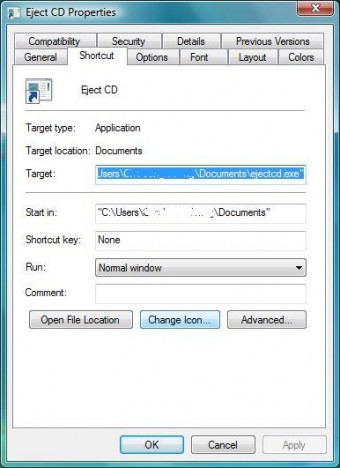
- In the shortcut’s Properties window, click on Shortcut tab if you’re not already on the tab.
- Click Change Icon button.
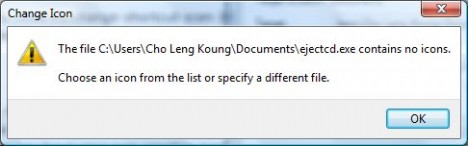
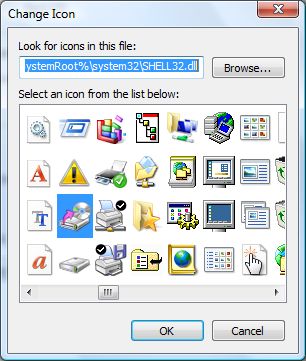
- If your program doesn’t contains any icons, a warning will be prompted. Click OK to continue. After clicking OK, the default Windows built-in icons from SHELL32.dll will be listed.
- In the pop up “Change Icon” dialog, select a new icon to represent the shortcut from list of icons available. If you feel that the selection of icons attached to the shortcut (i.e. program file) available in the list is not enough or not attractive, or you have your own creative icon, or have downloaded an icon file, you can select the icons from other application program or use your own icon. To do so, click Browse button, and select other icons file or program or libraries with icons.
- Click OK twice to exit when done.

The new icon will be applied immediately to the shortcut once OK is pressed. If you haven’t see any change, press F5 function key to refresh the screen.


Recent Articles
- How To Download HBO Shows On iPhone, iPad Through Apple TV App
- Windows 10 Insider Preview Build 19025 (20H1) for PC Official Available for Insiders in Fast Ring – Here’s What’s News, Fixes, and Enhancement Changelog
- Kaspersky Total Security 2020 Free Download With License Serial Key
- Steganos Privacy Suite 19 Free Download With Genuine License Key
- Zemana AntiMalware Premium Free Download For Limited Time
Tags
amazon
Android
apple
Apple iPad
Apple iPad mini
Apple iPhone
Apple iPhone 5
Apple iPod touch
Apple iTunes
Ashampoo Burning Studio
AVG Internet Security
BitDefender Internet Security
F-secure
Facebook Home
Free
Google Apps
Google Chrome
Google Maps
Instagram
iOS
iOS 7.1
iOS 8
iOS 9
ios 9.1
iOS 9.3
LG
Mac OS X
microsoft
Microsoft Office 365
Microsoft Office 2010
Microsoft Office 2013
Microsoft Office 2016
Microsoft Surface
Mozilla Firefox
Samsung
Skype
WhatsApp
Windows 7
Windows 8
Windows 8.1
Windows 10
Windows Vista
Windows XP
WordPress
YouTube